
Home Assistant vs HomeKit is one of the most common questions iPhone owners ask once their smart home grows past a few lights and plugs. Both can run a whole home, but they’re built for different people. HomeKit (the Apple Home app) is simple and private, and it works with very little maintenance, but only inside Apple’s ecosystem. Home Assistant works with far more devices and can run much more detailed automations, but you install it, update it and look after it yourself.
The good news is that you don’t always have to choose. Many homes run both, with Home Assistant running the devices and automations in the background and Apple Home and Siri as the everyday controls. If you’re still deciding between the big three platforms, start with our Apple Home vs Google Home vs Alexa comparison.
The Short Answer
In the Home Assistant vs HomeKit decision, go with HomeKit if everyone at home uses an iPhone, you want a system that’s easy to use, and your devices support HomeKit or Matter. Choose Home Assistant if you have many brands (including Zigbee or Z-Wave devices), want advanced automations, and don’t mind doing some setup and regular updates.
If you like the Home app but need more devices or smarter automations, use both: the Home Assistant HomeKit Bridge puts your Home Assistant devices into Apple Home, where Siri and the Home app control them like any other accessory.
What HomeKit Does Best
HomeKit is Apple’s smart home framework, and the Home app is where you use it. It’s free, it comes with every iPhone, and it works on the iPad, Mac and Apple Watch too. You add a device by scanning its code, and you control it from the Home app, Control Center or with Siri.
For the full experience you need a home hub: a HomePod mini, a HomePod or an Apple TV. Apple says the hub is what lets you control your home away from home, share control with family and run automations. Since iOS 18 you can add Matter devices without a hub, but you’ll still want one. Our guide on whether HomeKit needs a hub explains the details, and our explainer on what a smart home hub is covers how hubs work across Alexa, Google Home and SmartThings too.
What HomeKit does best:
- Simplicity. Setup takes minutes, and there’s nothing to update except your Apple devices.
- Privacy. Commands go through your home hub, and HomeKit Secure Video recordings are end-to-end encrypted, so Apple can’t see them.
- Matter support. Most Matter devices work in Apple Home, which has made the list of compatible devices much longer.
However, HomeKit only works on Apple devices, so anyone at home with an Android phone is left out. Automations are easy to build but limited: you get a trigger, a few conditions and the actions (see our guide to HomeKit automations). And Apple Home doesn’t support Zigbee or Z-Wave directly. Zigbee products like Philips Hue or Aqara sensors work only through their own bridge.
What Home Assistant Does Best
Home Assistant is a free, open-source smart home platform that runs on hardware you own. That can be the official Home Assistant Green, a Raspberry Pi, a mini PC or a virtual machine. You open it in a browser or in the Home Assistant Companion app, which is available on both iPhone and Android.
Its biggest strength is how much it works with. Home Assistant says it supports thousands of brands, from big names like Philips Hue, ecobee and Ring to small local devices. Add a USB radio such as the Home Assistant Connect ZBT-2 (about $49) and it also becomes your Zigbee or Thread hub, and the Connect ZWA-2 adds Z-Wave. If you’re unsure which radio you need, our Zigbee vs Z-Wave vs Matter guide explains the differences.
What Home Assistant does best:
- Much more flexible automations. You can combine triggers, conditions, delays, schedules and scripts, and reuse ready-made blueprints from the community.
- Local control. By default it runs only on your home network, and many integrations work without any cloud service.
- One app for everything. Devices that normally need five different apps show up on one dashboard.
However, Home Assistant asks more of you. A new version comes out every month, and you’re responsible for updates and backups. Remote access isn’t set up by default either: you either pay for Home Assistant Cloud ($6.50 a month or $65 a year, being renamed Home Assistant Link in December) or set up a VPN such as Tailscale yourself.
Home Assistant vs HomeKit Side by Side
| HomeKit (Apple Home) | Home Assistant | |
|---|---|---|
| What it is | Apple’s built-in smart home platform | Free, open-source platform you run yourself |
| Phones | iPhone only | iPhone and Android |
| Hardware | HomePod mini, HomePod or Apple TV as the hub | Home Assistant Green, Raspberry Pi, mini PC or virtual machine |
| Setup | Minutes, scan a code | Longer: install, add integrations, build dashboards |
| Devices | HomeKit and Matter | Thousands of brands, plus Matter and HomeKit |
| Zigbee and Z-Wave | Only through each brand’s bridge | Directly, with a USB radio |
| Automations | Simple trigger, conditions and actions | Advanced: conditions, scripts, templates, blueprints |
| Voice | Siri | Its own Assist, Siri through the HomeKit Bridge, Alexa and Google Home through Home Assistant Cloud |
| Remote access | Free with a home hub | Home Assistant Cloud or your own VPN |
| Upkeep | Very little | Monthly updates and backups |
Setup and upkeep
HomeKit wins clearly here. You plug in a HomePod mini, scan a device’s code and you’re done. The Home Assistant Green makes the start easier, since it comes ready to use, but you still spend time adding integrations, naming devices and building dashboards. Each monthly release can also change how an integration works, so it’s worth reading the release notes before you update.
Device support
Home Assistant supports far more devices. HomeKit covers HomeKit and Matter devices, and Matter has helped a lot, but many popular products (Ring cameras, older Zigbee sensors, most Z-Wave locks) still don’t work in Apple Home without a workaround. Home Assistant can usually control them directly.
Automations
HomeKit automations are good for everyday routines: turn on the porch light at sunset, lock the door when everyone leaves. Home Assistant can handle the situations Apple Home can’t, such as “if the washing machine’s power drops for five minutes, send a notification to whoever is home” or “only run the heater if a window sensor shows the window is closed”.
Privacy and local control
Both are strong here. Apple processes commands through your home hub and encrypts camera recordings end to end. Home Assistant keeps everything on your own hardware unless you choose to connect a cloud service. With Home Assistant, privacy depends on the integrations you use: some devices still need their manufacturer’s cloud.
Cost
The Home app is free, and a HomePod mini 2 costs $149. Home Assistant is also free, but you need hardware to run it: the Home Assistant Green costs about $219 on Amazon, plus about $49 for a Zigbee and Thread radio if you need one. Remote access through Home Assistant Cloud adds $65 a year. HomeKit Secure Video needs an iCloud+ plan (one camera on the 50GB plan, five on 200GB, unlimited on 2TB).
Phone, voice and remote access
Apple Home gives you Siri, Control Center and lock-screen controls, and remote access is free once you have a hub. Home Assistant’s Companion app is very capable (it also works on Apple Watch and CarPlay), and it has its own voice assistant, Assist. But for a household that already says “Hey Siri” all day, the easiest option is often to bring Home Assistant into Apple Home, which is the next section.
Using Home Assistant With HomeKit
You can connect Home Assistant and HomeKit in three ways, and each one works in a different direction.

1. HomeKit Bridge: Home Assistant devices in Apple Home. The Home Assistant HomeKit Bridge integration publishes your Home Assistant devices as HomeKit accessories. Add the bridge in the Home app by scanning the QR code Home Assistant shows you, and your Zigbee sensors, Z-Wave locks and other devices appear in Apple Home and work with Siri. Worth knowing:
- One bridge holds up to 150 accessories. If you have more, you can create a second bridge.
- Cameras, locks and TVs are added one at a time in “accessory mode”, each with its own code.
- Cameras shared this way don’t support HomeKit Secure Video.
- The Home app warns that the bridge is an uncertified accessory. That’s expected, and you can add it anyway.
- You still need an Apple home hub for remote control and automations in Apple Home. If bridged devices show No Response, our HomeKit not responding troubleshooting guide walks through the hub and Wi-Fi checks.
Home Assistant’s HomeKit Bridge documentation lists every supported device type and setting.
2. HomeKit Device: HomeKit accessories in Home Assistant. This works the other way round: Home Assistant controls a “Works with HomeKit” accessory directly. However, a HomeKit accessory can only have one controller, so you have to remove it from Apple Home first. Before you do, make sure you have its setup code: our guide to lost HomeKit or Matter setup codes explains where to find it. Most people use the bridge instead, so the device stays in Apple Home.
3. Matter: one device in both. A Matter device can be in Apple Home and Home Assistant at the same time. Add it to Apple Home first, then in the Home Assistant Companion app choose to add a Matter device that’s “already in use”. Home Assistant can control Matter devices, but it can’t turn its own devices into Matter devices, so the HomeKit Bridge remains the way to bring everything else into Apple Home. If you’re still choosing a Matter controller or Thread border router, our guide to the best Matter hubs compares the options for each platform.
If you only need a few non-HomeKit devices in the Home app and don’t want a full smart home platform, Homebridge is a lighter option that does just the bridging.
Which Should You Choose?
- Everyone at home uses an iPhone and you want it simple: HomeKit. Choose devices that support HomeKit or Matter (our selection of the best HomeKit devices is a good start) and add a HomePod mini as the hub.
- You have Android users at home or many brands: Home Assistant, since it works on any phone and with most devices.
- You want automations HomeKit can’t do: Home Assistant, and keep using the Home app and Siri through the HomeKit Bridge.
- You don’t want to maintain anything: HomeKit. Home Assistant needs someone at home who’s happy to handle updates.
- You’re starting from scratch: start with HomeKit and Matter devices. If you outgrow it, add Home Assistant later and share the same Matter devices with it.
What You Need to Get Started
Home Assistant Green — Best Way to Start With Home Assistant

The official Home Assistant hardware comes ready to use: plug in power and an Ethernet cable, then open Home Assistant in your browser. It has 4GB of RAM and 32GB of storage, and two USB ports for a Zigbee, Thread or Z-Wave radio.
Best for: anyone trying Home Assistant who doesn’t want to set up a Raspberry Pi or a server.
Price: ~$219
Apple HomePod mini 2 — Best Home Hub for HomeKit
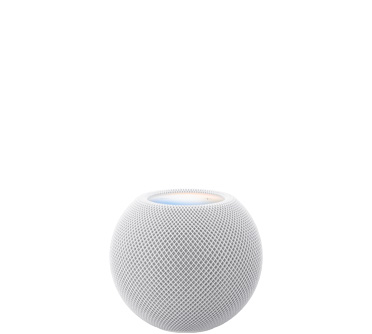
Apple’s new HomePod mini is its cheapest home hub. It runs your automations, lets you control your home away from home and acts as a Thread border router. It also has temperature and humidity sensors. It ships on October 30, and the original HomePod mini keeps working as a hub if you already have one.
Best for: iPhone households using Apple Home, with or without Home Assistant.
Price: ~$149
The Bottom Line
There’s no single winner in the Home Assistant vs HomeKit question. HomeKit is the better choice if you want a private, simple smart home that everyone at home can use without help. Home Assistant is the better choice if you want every device in one place and much more flexible automations, and you’re happy to look after it. If you want both, Home Assistant and HomeKit work well together: let Home Assistant run the devices and automations, and keep Apple Home and Siri as the controls you use every day.
Is Home Assistant better than HomeKit?
It depends on what you need. Home Assistant supports far more devices and much more advanced automations, while HomeKit is simpler, needs almost no maintenance and works only on Apple devices. Many homes use both, with Home Assistant shared into Apple Home through the HomeKit Bridge.
Can Home Assistant work with HomeKit?
Yes. The HomeKit Bridge integration adds your Home Assistant devices to the Apple Home app, where you can control them with Siri. Home Assistant can also control HomeKit accessories directly once you remove them from Apple Home, and Matter devices can be in both at the same time.
How many devices can the Home Assistant HomeKit Bridge handle?
One HomeKit Bridge holds up to 150 accessories, and you can create more than one bridge if you need more. Cameras, locks and TVs are added separately in accessory mode, each with its own pairing code.
Do I still need an Apple TV or HomePod if I use Home Assistant?
Only if you want to use Apple Home. Bridged accessories in the Home app still need an Apple home hub (a HomePod mini, HomePod or Apple TV) for remote control, shared access and automations. Home Assistant itself runs without any Apple hardware.
Does Home Assistant cost money?
The software is free and open source, but you need hardware to run it, such as the Home Assistant Green or a Raspberry Pi. Remote access through Home Assistant Cloud costs $6.50 a month or $65 a year, or you can set up your own VPN for free.

Written by Evan Mercer
Founder & Lead Researcher, Smart Home Matrix
Evan digs through spec sheets, firmware changelogs, and thousands of owner reviews so you don’t have to. Every guide starts with a compatibility check and ends with picks he would install in his own home. Read more about Evan and this site, or see exactly how we choose products.