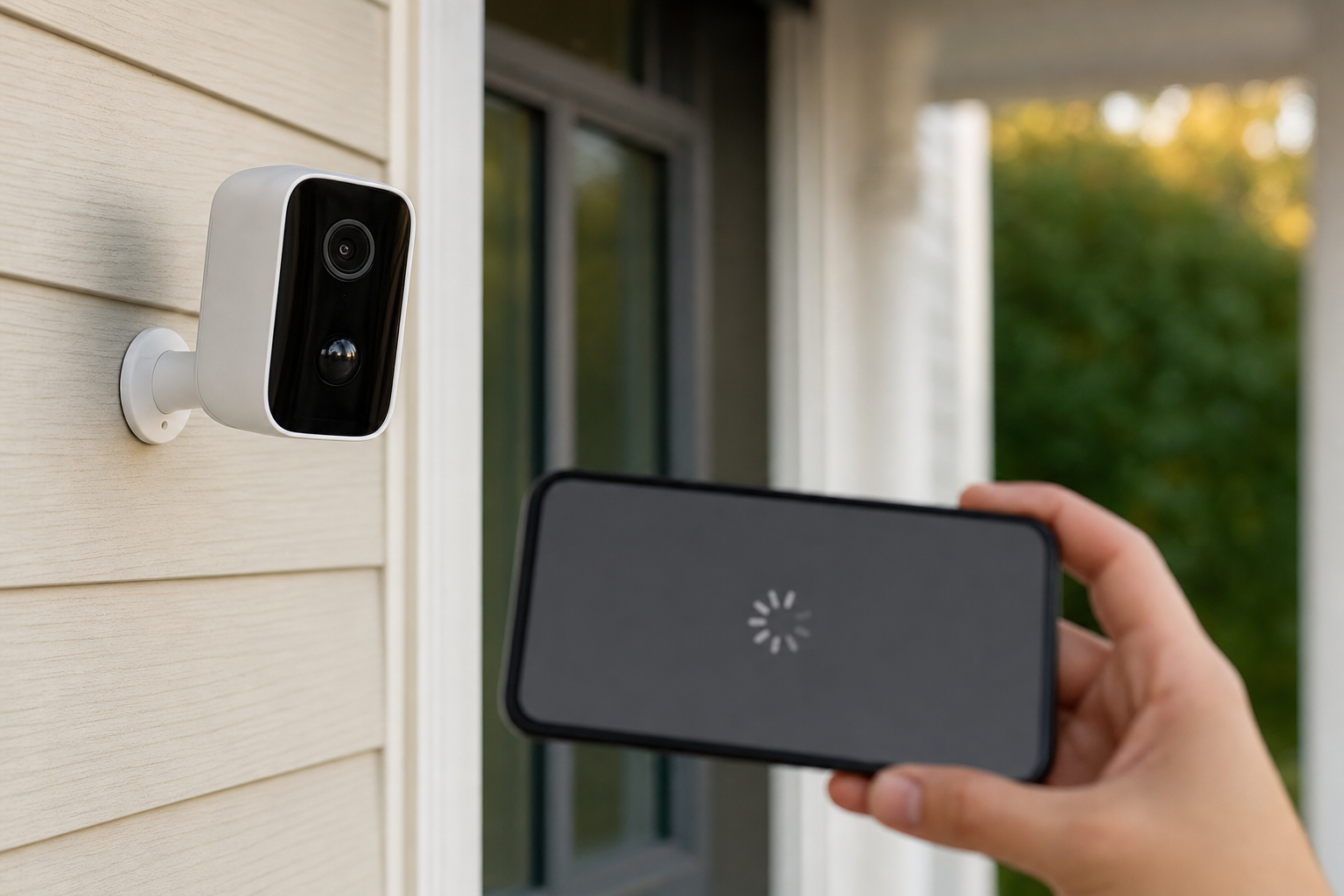
A Ring camera not working usually shows it in one of three ways: the camera’s tile in the Ring app says it’s offline, motion events stop showing up in your history, or Live View keeps loading and never starts. In most cases the camera itself is fine. The problem is its power, its Wi-Fi signal, a setting in the app or your Ring plan.
This guide covers Ring’s security cameras: the Outdoor Cam (Ring’s new name for the Stick Up Cam), Spotlight Cam, Floodlight Cam, Indoor Cam and Pan-Tilt Indoor Cam. Start with the quick fixes, then go to the step that matches what you see. If it’s a Ring doorbell that’s giving you trouble, our guide on how to reset a Ring doorbell covers the doorbell-specific checks.
Quick Fixes
Try these in order.
- Open Device Health. In the Ring app, tap the menu (☰), then Devices, your camera and the Device Health tile. It shows whether the camera is connected and how strong its Wi-Fi signal is.
- Restart your router and modem. Unplug both for 30 seconds, plug them back in and give them a few minutes to come back.
- Power cycle the camera. Take the battery pack out for 10 seconds and put it back, or unplug a plug-in camera for 10 seconds. For a hardwired camera such as a Floodlight Cam, turn it off at the wall switch or the breaker, then on again.
- Charge the battery. When a battery camera’s battery is low or dead, the app shows a warning icon instead of the usual menu. A Quick Release battery pack can take up to 10 hours to charge fully.
- Update the Ring app and turn off any VPN on your phone. Both are on Ring’s own list of fixes for video that won’t load.
Why Your Ring Camera Stops Working
Ring cameras don’t use a hub or a base station. Each camera connects to your Wi-Fi router by itself, so a Ring camera offline in the app comes down to four things: the camera has lost power, its Wi-Fi signal is too weak, your router or internet connection is down, or Ring’s servers are having problems. Our guide on why smart cameras keep going offline explains how this works with other brands too.
Each symptom points to a different place:
- Offline: power or Wi-Fi. Fix this first, because an offline camera can’t detect motion, record or show Live View.
- Online but not recording: a setting in the app, or your Ring plan.
- Online but Live View won’t load: usually your phone, your upload speed or a Mode setting.
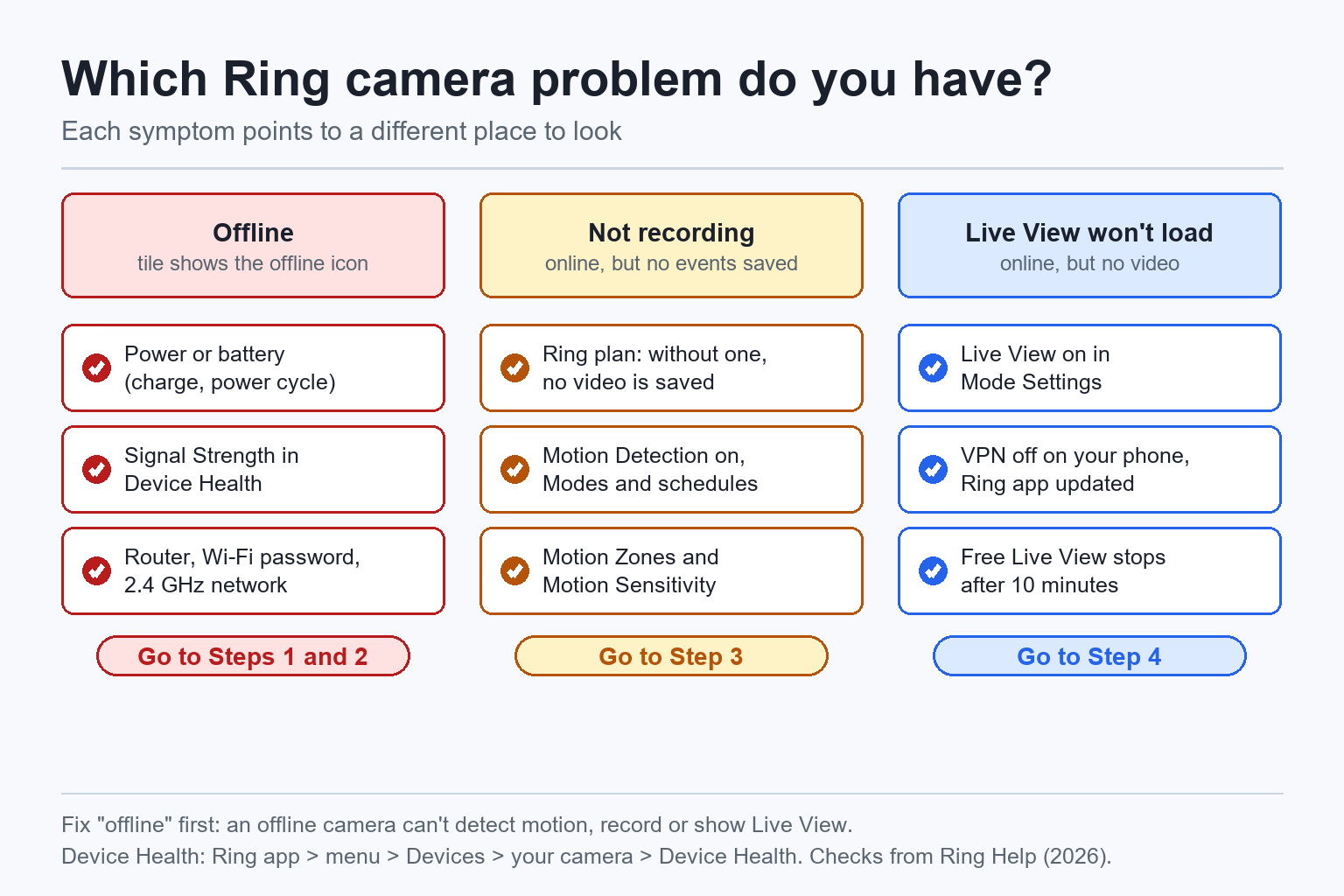
Device Health is where you check most of this. Under Network you’ll find the camera’s Signal Strength and the Reconnect and Change Network options, and further down there’s a Reboot This Device button.
Ring Camera Troubleshooting: Step by Step
These five steps cover the usual reasons for a Ring camera not working. If the camera shows offline, start with Step 1.
Step 1: If Your Ring Camera Is Offline
An offline camera shows an offline icon on its tile in the Ring app. Tap it to see an error code (such as P1-65) and Ring’s suggested steps.
Check the signal first. In Device Health, look at Signal Strength. Ring shows it as an RSSI number in dBm, and the closer it is to zero, the better:
- 0 to -60: great.
- -60 to -70: okay, but it could be better.
- -70 to -80: poor. Ring warns of delays and interruptions.
- -80 or worse: very poor. Ring says to expect intermittent service or the camera going offline.
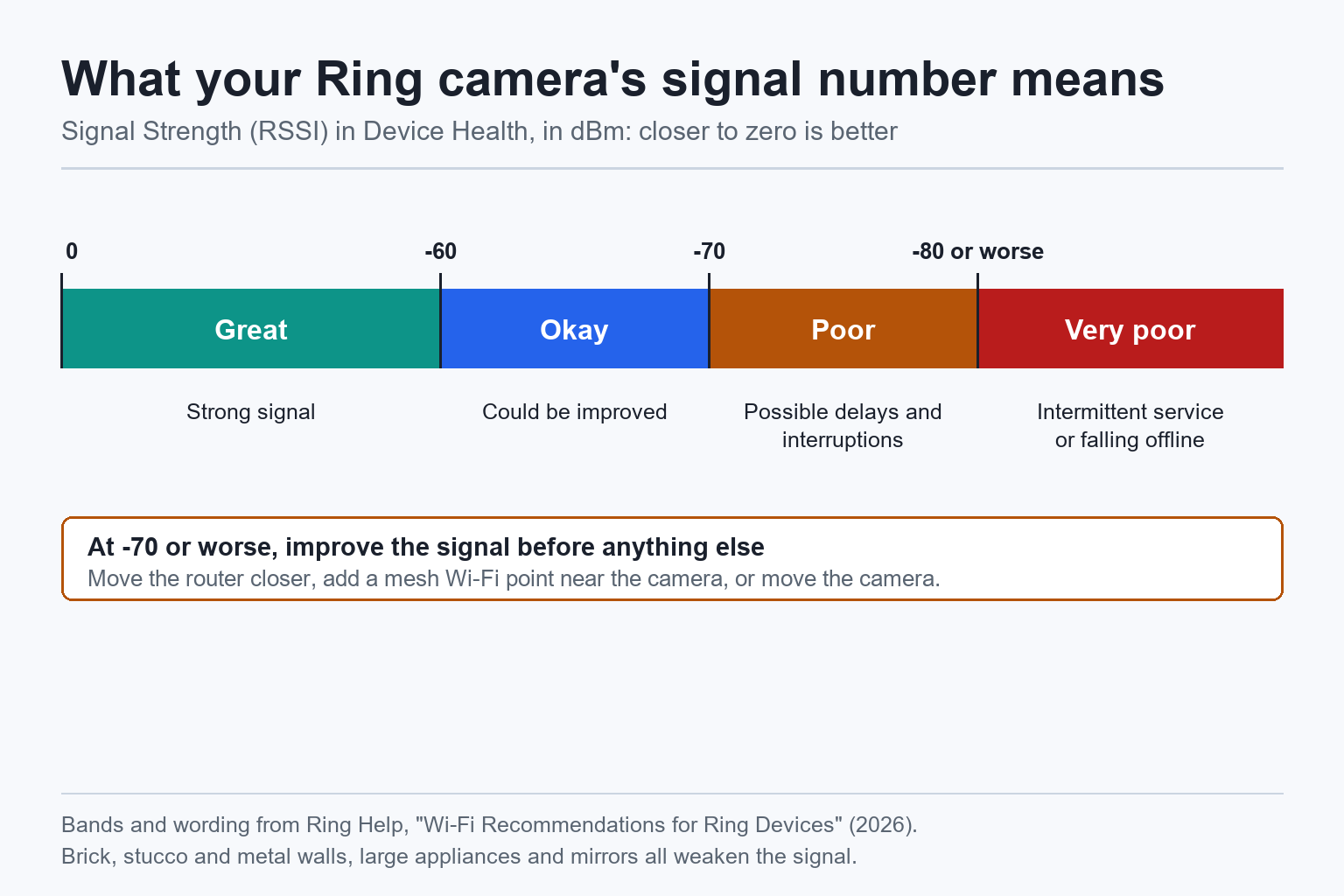
At -70 or worse, move the router closer, add a mesh Wi-Fi point near the camera, or move the camera. Brick, stucco and metal walls, large appliances and mirrors all weaken the signal. Ring’s Wi-Fi recommendations list the details.
Then check the network:
- New router or Wi-Fi password? The camera doesn’t learn it by itself. In Device Health, under Network, tap Change Network and follow the prompts.
- Use 2.4 GHz. When a device won’t stay connected, Ring suggests a 2.4 GHz network instead of 5 GHz. Several current cameras, including the Outdoor Cam 2K and Spotlight Cam 2K, only support 2.4 GHz.
- More than one router? Ring says multiple Wi-Fi routers can cause connection problems. Keep one router, or set the second one to bridge mode.
- Upload speed. Each camera needs its own upload speed: Ring lists 10 Mbps for a 2K camera and 15 Mbps for a 4K camera, and you add them together for several devices. Run a speed test next to the camera, with your phone on the same Wi-Fi, to check your connection keeps up.
Step 2: Check Battery, Power Mode and Weather
Battery and solar cameras have a few causes of their own.
- Power Mode. Cameras that can run on a battery or on wired power, such as the Outdoor Cam and Spotlight Cam, have a Power Mode setting in Device Settings, under Power Management. If the camera runs only on its battery or a solar panel, Ring says to set it to Battery Mode. A camera left in Wired Mode without a working power source switches to Low Power Mode, which changes its motion and recording settings.
- Cold. Ring cameras work from -4°F to 122°F, but they stop charging below freezing. In winter, take the battery inside and charge it by USB instead of waiting for the solar panel.
- Heat. An overheated camera goes into Device Cooldown, with fewer features and lower video quality, and it shuts down if it keeps getting hotter. A shaded spot helps.
- Solar. A Ring solar panel only gives a trickle charge. It needs three to four hours of direct sun a day, and it only starts charging once the battery drops below 90%. Wipe the panel with a damp, soft cloth when it’s dusty.
- Battery drain. Lots of motion events and Live View sessions drain the battery faster. So does a weak Wi-Fi signal, because the camera keeps losing its connection and reconnecting.
Step 3: If Your Ring Camera Is Not Recording
If the camera is online and Live View works but nothing appears in your event history, check these in order:
- Your Ring plan. Without a Ring subscription, Ring doesn’t record or save video. Live View, motion alerts, Two-Way Talk and Motion Zones still work, so the camera looks like it’s working fine. If recordings stopped when a free trial ended, that’s why. Our guide to whether you need a subscription for Ring explains what each plan includes.
- Motion Detection. Each camera has its own Motion Detection switch (menu > Devices > your camera). It has to be on for the camera to detect and record motion.
- Modes and schedules. With Modes (Disarmed, Home and Away), you choose whether each camera records in each mode, and a Motion Schedule turns motion detection off at set times. Open the camera’s Mode Settings, or turn Modes off for a moment and walk in front of the camera to test it.
- Motion settings. In Motion Settings, check that your Motion Zones cover the area you care about and that a Privacy Zone isn’t blocking it. If the camera misses events, turn up Motion Sensitivity. On a battery camera, you can also set Motion Frequency to Frequently, which catches more events but shortens battery life.
- The protective film. New Ring cameras ship with a film over the front, and Ring says it stops motion detection. Take it off if it’s still there.
If clips are recording but you don’t get alerts, turn on Motion Alerts for that camera.
Step 4: If Ring Live View Won’t Load
Live View needs the camera online, so check Step 1 first. If the camera is online and Live View still won’t start:
- Check Mode Settings. Live View can be turned off for a camera in a specific mode. If it only fails in Home or Away mode, that setting is the reason.
- Turn off your VPN. Ring lists a VPN on your phone as a cause of video that won’t load.
- Restart your phone (turn it off for 30 seconds), then update the Ring app and your phone’s operating system.
- End-to-End Encryption. If you turned it on, watch from the phone you used to set it up.
- Clean the lens. Film, cobwebs or dirt on the lens can make the picture look broken. Wipe it with a dry cloth.
- The 10-minute limit. Without a subscription, Live View runs for up to 10 minutes per session, so a stream that ends after 10 minutes is normal. Extended Live View (up to 30 minutes) needs a plan.
If the video loads but looks pink, shows night vision in daylight, or recordings won’t open, reboot the camera (Step 5).
Step 5: Reboot, Then Reset as a Last Resort
Try a reboot first. In Device Health, scroll down to Reboot This Device, confirm and wait a few minutes. Ring suggests it for distorted audio, discolored video, night vision during the day and recordings that won’t open. The camera has to be online for this. If it’s offline, power cycle it instead.
A factory reset is the last resort, and afterward you might need to set the camera up again in the Ring app. Hold the setup button for 20 seconds, then let go. On the Outdoor Cam (the old Stick Up Cam), the button is inside the battery compartment. On Ring’s other cameras, it’s on top.
When It’s Not Your Setup
If every Ring camera goes offline at the same time while your internet works, the problem may be on Ring’s side. Ring’s status page, status.ring.com, shows the state of its apps, cameras and stored recordings. Outages do happen: when Amazon Web Services had a major outage on October 20, 2025, Ring cameras stopped responding for many owners in the US.
Also check the camera’s age. Ring ended support for the Stick Up Cam (1st Gen) on November 12, 2024, and it no longer connects at all. In Device Health, the Product Name shows “Support Ending” or “Support Ended” with a date for any device that has reached that point. If yours has, our guide to the best Ring cameras compares the current models.
If a camera keeps dropping offline even with good power and a strong signal, contact Ring support.
The Bottom Line
A Ring camera not working is usually a power, Wi-Fi or settings problem. Check Device Health first: the signal should be better than -70, and a battery camera needs a charged battery (and Battery Mode if it has no wired power). If it’s online but doesn’t record, check your Ring plan, Motion Detection and Modes. If Live View won’t load, turn off your phone’s VPN and update the app. Leave the factory reset for last.
Why does my Ring camera keep going offline?
Usually a weak Wi-Fi signal or a power problem. Check Signal Strength in Device Health: Ring rates -70 to -80 as poor and -80 or worse as very poor, which can make the camera fall offline. Then check the battery, try a 2.4 GHz network, and restart your router and modem.
Why is my Ring camera not recording?
Without a Ring subscription, Ring doesn’t record or save video, even though Live View and motion alerts still work. With a plan, check that Motion Detection is on for the camera, that Modes or a Motion Schedule aren’t turning recording off, and that your Motion Zones cover the right area.
Why won’t Ring Live View load?
The camera may be offline, so check Device Health first. If it’s online, turn off any VPN on your phone, update the Ring app and check that Live View isn’t turned off for that camera in your Mode Settings. Without a subscription, Live View also stops after 10 minutes per session.
How do I reset a Ring camera?
Hold the setup button for 20 seconds, then let go. On the Outdoor Cam (formerly the Stick Up Cam) it’s inside the battery compartment, and on other Ring cameras it’s on top. Try Reboot This Device in Device Health first, because after a factory reset you might need to set the camera up again.
How can I tell if Ring is down?
Check Ring’s status page at status.ring.com, which lists the Ring apps, cameras and stored recordings. If all your cameras go offline at once while your internet works, an outage on Ring’s side is the likely cause.

Written by Evan Mercer
Founder & Lead Researcher, Smart Home Matrix
Evan digs through spec sheets, firmware changelogs, and thousands of owner reviews so you don’t have to. Every guide starts with a compatibility check and ends with picks he would install in his own home. Read more about Evan and this site, or see exactly how we choose products.