If you lost the HomeKit code for a smart plug or can’t find the Matter sticker on a bulb, you may not need it. What you can do depends on two things: whether the device uses HomeKit or Matter, and whether it’s still set up in an app.
This guide explains where to find the code and what to do when you can’t, using Apple’s, Google’s and Amazon’s own setup instructions.
Quick Answer
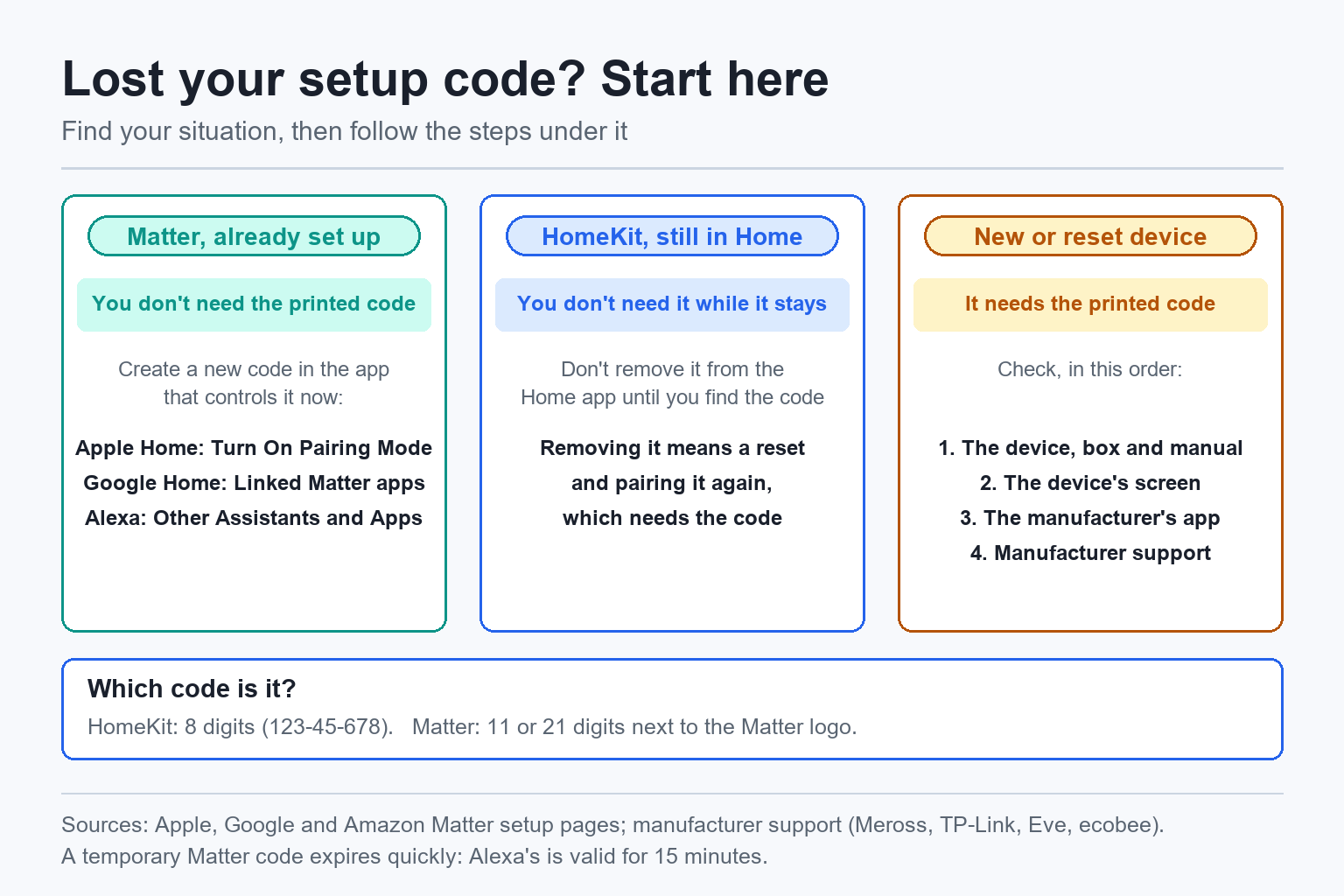
- Your Matter device is already set up in an app: you don’t need the printed code. Open the app that controls it now and generate a new Matter pairing code there.
- Your HomeKit device is still in the Home app: you don’t need the code while it stays there. Don’t remove it until you’ve found the code, because you’ll need it to add the device again.
- Your device is new or was reset: check the device, the box and the manual, then the device’s own screen or the manufacturer’s app. If it isn’t in any of those, contact the manufacturer.
HomeKit Codes and Matter Codes
There are two kinds of setup code, and the Home app accepts both.
A HomeKit setup code has 8 digits, usually printed as three groups (123-45-678) next to a HomeKit or “Works with Apple Home” label. Most labels also have a QR code with the same information. Some accessories have NFC instead: when the Home app asks, you hold your iPhone near the accessory.
A Matter pairing code has 11 digits (21 on some devices) and sits next to the Matter logo. Above or beside it is the Matter QR code, which holds the same information. If the QR code won’t scan, you can type the number instead. A multipack can come with one QR code that adds every device in the pack at once.
Some devices have both. The Matter code is the one that works in every Matter app, Apple Home included. Eve’s Matter update is an example: Eve says the new Matter code “will completely replace the HomeKit setup code.”
Where to Find Your Setup Code
Look in these places, in this order:
- On the device. Smart plugs usually have it on the side, bulbs on the body between the glass and the base, and in-wall switches near the buttons or under the wall plate (Leviton prints it in the lower right corner of its Decora Smart switches). Also check the bottom of hubs and bridges, battery compartments and behind removable covers.
- In the box. TP-Link puts a backup Matter sticker in the box for its Kasa and Tapo devices, and Philips Hue prints the Matter QR code in the installation guide. Check any card or leaflet that came with the device.
- On the device’s screen. Devices with a display can show their code. On an ecobee thermostat, go to Main Menu, then General, Settings and HomeKit, and turn on HomeKit pairing to show the QR code (on the Smart Thermostat Lite and Essential, Settings is directly in the Main Menu).
- In the manufacturer’s app. Meross shows the HomeKit setup code under Device Settings, then Device Info. Kasa and Tapo show the Matter Setup Code in the same place. Eve stores the Matter code in the Eve app.
If you use a bridge (a Philips Hue Bridge or a Lutron Caseta Smart Bridge, for example), the lights and switches connected to it don’t have codes of their own. You only need the code on the bridge itself (Lutron prints it on the bottom of the Smart Bridge).
If the Device Is Already Set Up
Matter: Generate a New Pairing Code
For a Matter device that already works in one app, you don’t need the printed code. Amazon says the code on the device or its packaging is only for the first setup or after a factory reset. To add the device to a second platform, you create a temporary Matter pairing code in the app that controls it now:
| App that controls it now | Where to get a new code |
|---|---|
| Apple Home | Accessory settings, then Turn On Pairing Mode |
| Google Home | Touch and hold the device, then Settings, Linked Matter apps & services. Choose the other app, or tap Use pairing code |
| Amazon Alexa | Devices, select the device, Other Assistants and Apps, Add another |
| SmartThings | The device’s menu, then Share with other services |
| Home Assistant | Settings, Connectivity, Matter, Devices, select the device, Share device |
Then open the new app, start adding a Matter device and choose to enter a code (in Alexa, it’s “Try Numeric Code Instead?”). These codes expire quickly: Alexa’s is only valid for 15 minutes, so add the device right after you create the code. For a worked example with a Google Home device, here’s how to add a Nest thermostat to Apple Home.
On an iPhone, it’s even easier to find the device. Apple stores every Matter device you pair in iCloud Keychain, so the Home app and other Matter apps on your iPhone list the devices you’ve already paired. In the Home app, tap Add Accessory, then More options, and select yours. If the app asks for a code, create one in the app that controls the device. Apple’s guide to managing your Matter accessories shows where to see them in Settings.
Some platforms also need a hub to control Matter devices: Google says you need one Matter-enabled hub for each Matter app you use. Our guide to the best Matter hubs compares the options, and if you’re moving devices into Home Assistant, Home Assistant vs HomeKit explains how the two work together.
HomeKit: Keep It Where It Is
A device that only uses HomeKit works differently. HomeKit doesn’t have a pairing mode like Matter, so you can’t create a new code for a second platform, and the Home app doesn’t show you the code after pairing.
As long as the accessory stays in your home, that’s fine. Your HomeKit code only matters when you add the accessory again. However, if you remove it from the Home app, you’ll need to reset it and pair it again with the code. Apple also says an accessory that was added to another home may need a reset before you can add it to yours.
So if an accessory shows No Response, don’t remove it as the first fix. Our guide on how to fix HomeKit Not Responding covers what to try before that.
If the Device Is New or Was Reset
This is the hardest case, because the device needs its original code. A factory reset doesn’t replace a printed code: after a reset, the device needs that same code again (Amazon and Eve both say so for Matter devices).
- Search the device, the box and the manual again. Use the list above, including the bottom of the device and inside any covers.
- Check the device’s screen. On an ecobee thermostat, if no code shows up, tap “Don’t Have a Code or Can’t Scan?” in the Home app and select the thermostat to show its code.
- Set it up in the manufacturer’s app. Some apps show the code once the device is added there. Meross, for example, says to reset the device, add it in the Meross app, read the HomeKit setup code in its settings, and then add it to Apple Home.
- Contact the manufacturer. Have the model, the serial number and your proof of purchase ready. Meross asks for the Amazon order invoice. This doesn’t always work: Eve says that “nobody but you has a copy” of its Matter codes.
If none of these work, you can still use the device in the manufacturer’s own app, but you won’t be able to add it to Apple Home or another Matter app without the code.
How to Keep Your Codes Safe
Once you have the code, save it somewhere you’ll find it later:
- Take a photo of the label before you install the device, especially switches and anything that goes behind a wall plate.
- Save it in a note or a password manager, with the device name and room. A Home app note or Apple’s Notes app works too.
- Keep the box insert or the backup sticker with your other manuals.
Eve also lets you send the Matter code to another device with AirDrop or email, save it to Photos or Files, or print it. Don’t post photos of your codes online, because the code is what lets someone add the device to their own app.
Not sure whether a device uses Matter or HomeKit? Our guide to Matter-compatible devices explains which device types work with Matter, and Do I Need a Hub for HomeKit? covers when Apple Home needs a home hub.
The Bottom Line
If your Matter device is already set up, skip the printed code and generate a new Matter pairing code in the app that controls it. If it’s a HomeKit device, keep it in the Home app until you find the HomeKit code. For a new or reset device, check the label, the box, the screen and the manufacturer’s app, and contact the manufacturer if it’s not in any of those.
</content>
</invoke>
Where is the HomeKit code on my device?
The 8-digit HomeKit setup code is printed on the accessory, its box or its documentation, usually next to a QR code. Check the side of plugs, the body of bulbs and the area under a switch’s wall plate. Devices with a screen, like ecobee thermostats, can show it on the display, and some apps (Meross, for example) show it in the device settings.
Can I see my HomeKit code in the Home app?
No. The Home app doesn’t show an accessory’s setup code after you add it. Look on the device, the box or the manufacturer’s app instead, and keep the accessory in the Home app until you’ve found the code, because you need it to add the accessory again.
How do I get a new Matter pairing code?
Create it in the app that already controls the device. In Apple Home, open the accessory settings and tap Turn On Pairing Mode. In Google Home, go to the device’s settings, then Linked Matter apps & services. In Alexa, select the device, then Other Assistants and Apps and Add another, which gives you an 11-digit code that’s valid for 15 minutes.
Can I add a Matter device without scanning the QR code?
Yes. Type the 11-digit Matter pairing code printed next to the QR code (some devices use a 21-digit code). Apple Home accepts both lengths, and in Alexa you tap Try Numeric Code Instead? to enter it.
Does a factory reset give my device a new setup code?
No. A factory reset doesn’t replace the printed code, and the device needs that same code when you set it up again. Amazon says the code on a Matter device or its packaging is for the first setup or after a factory reset.
What can I do if I can’t find the code anywhere?
Contact the manufacturer with the model, the serial number and your proof of purchase, since some can help (Meross asks for the Amazon order invoice). If they can’t, you can still use the device in the manufacturer’s own app, but not in Apple Home or another Matter app.

Written by Evan Mercer
Founder & Lead Researcher, Smart Home Matrix
Evan digs through spec sheets, firmware changelogs, and thousands of owner reviews so you don’t have to. Every guide starts with a compatibility check and ends with picks he would install in his own home. Read more about Evan and this site, or see exactly how we choose products.