A HomeKit automation makes your accessories act on their own: the porch light turns on at sunset, the hallway light comes on when a motion sensor sees you, or everything switches off when the last person leaves. You set it up once in the Home app and it runs every time its trigger happens, without you tapping anything or asking Siri.
There’s one requirement to know first: automations run on a home hub, so you need a HomePod, HomePod mini or Apple TV at home. This guide explains what you need, the four triggers, how to set one up step by step, and the automation ideas that are actually useful day to day.
HomeKit Automations: The Short Answer
- What it is: a rule in the Apple Home app that runs a scene or controls accessories when something happens.
- What can start it: people arriving or leaving, a time of day (including sunrise and sunset), an accessory being controlled, or a sensor detecting something.
- What you need: a home hub (HomePod, HomePod mini or Apple TV 4K) and accessories already added to the Home app.
- Where to make it: in the Home app, tap the Add button, then Add Automation.
- Scene or automation? A scene controls several accessories at once when you tap it or ask Siri. An automation runs accessories or scenes on its own when its trigger happens.
What You Need Before You Start
A home hub. Apple Home runs automations from a home hub, so this is the one thing you can’t skip. A HomePod (2nd generation), HomePod mini or Apple TV 4K can be a home hub. An iPad can’t anymore: Apple ended support for the old Home architecture in February 2026, and the current one only accepts HomePod and Apple TV as hubs. A HomePod becomes a hub automatically when you set it up, and an Apple TV becomes one when you add it to a room. To see which device is your active hub, open the Home app, tap More, then Home Settings and Home Hubs & Bridges. Our guide on whether HomeKit needs a hub explains what else a hub adds.
A Thread-capable hub for Thread accessories. Thread devices, including many Matter sensors and plugs, need a Thread-enabled hub to run automations: an Apple TV 4K with Thread, a HomePod (2nd generation), a HomePod mini or a compatible third-party border router. Our guide to the best Matter hubs covers Thread border routers that work with Apple Home, including Aqara’s hubs.
Your accessories in the Home app. Anything that shows up in Apple Home can be part of an automation, including Matter accessories. Since iOS 18 an iPhone can add and control Matter accessories without a hub, but automations with them still need one.
Location sharing for arrive and leave automations. You, and anyone you’ve invited to your home, need Share My Location turned on in Settings, under your name and Find My, with This Device selected as My Location. A Mac can’t trigger a location automation.
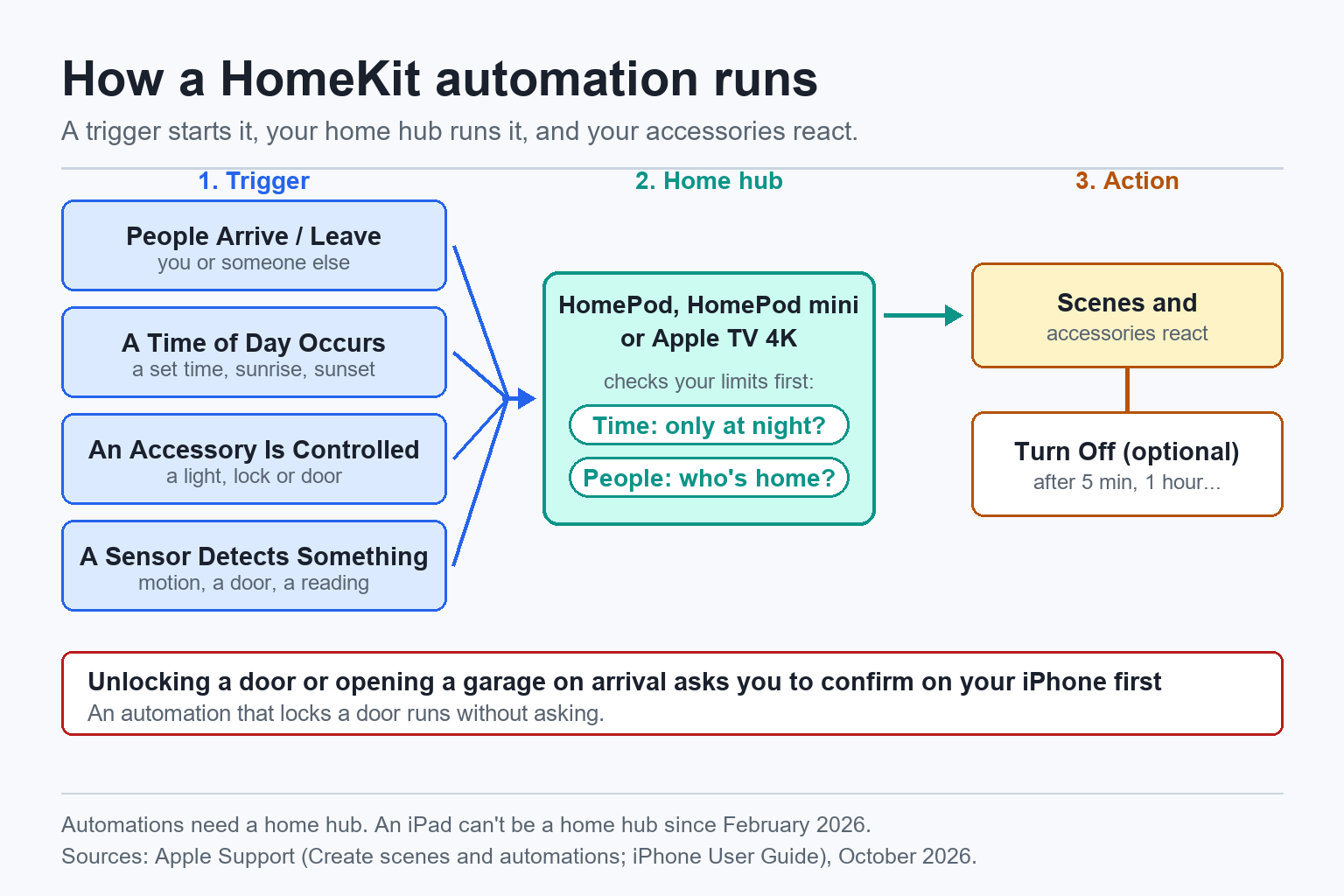
The Four HomeKit Automation Triggers
Every apple home automation starts with one of four triggers. The options after it change depending on the trigger you choose.
People Arrive or People Leave
The automation runs when you, a specific person or anyone in your home arrives or leaves. You can choose a person, the location and a time window. Example: turn on the entry lights when the first person gets home after sunset. If you choose a location other than your home, only you can trigger the automation.
A Time of Day Occurs
The automation runs at a set time on the days you choose, or at sunrise or sunset. Sunrise and sunset times change with the seasons, so this is the best trigger for outdoor lights. You can also add a People condition so it only runs when someone is home (or when nobody is).
An Accessory Is Controlled
The automation runs when an accessory changes, such as a light turning on, a door lock unlocking or a garage door opening. Apple’s own example is running a scene when you unlock the front door. Smart buttons work a little differently: you choose what each press does on the button’s own page in the Home app, and our guide to the best smart buttons compares the options for Apple Home.
A Sensor Detects Something
The automation runs when a sensor reports something: motion, a door or window opening, a leak, or a reading that rises above or drops below a value you set. Temperature, humidity, light level and air quality sensors all work this way. The temperature and humidity sensors built into a HomePod mini or HomePod (2nd generation) can trigger automations too.
How to Set Up a HomeKit Automation
Here’s how to set up a HomeKit automation on an iPhone. The steps are the same on an iPad and very similar on a Mac.
- Open the Home app and tap the Add button, then tap Add Automation.
- Choose a trigger: People Arrive, People Leave, A Time of Day Occurs, An Accessory is Controlled or A Sensor Detects Something.
- Set the details for that trigger. For an accessory or sensor, select it, tap Next and choose what starts the automation (for example, motion detected or the door opens). For a time, pick the time or sunrise or sunset and the days.
- Limit when it runs if you need to. You can set a time of day (for example, only at night) and a People condition (only when someone is home, or only when nobody is).
- Tap Next, then select the scenes and accessories that should react.
- To change what an accessory does, such as a light’s brightness, touch and hold it.
- Tap Test This Automation to check it, then tap Done.
Your automations are listed in the Automation tab. Tap one to edit it later. Turn Off is a useful setting: it turns the accessories off again after a time you choose, so a light switched on by motion or by your arrival goes off by itself after five minutes or an hour. Enable This Automation turns it off without deleting it, and you can delete one by swiping left on it.
If several accessories should always react together, create a scene first (for example, “Leave Home” or “Good Night”) and use the scene in your automations. Changing the scene later updates every automation that uses it.
HomeKit Automation Ideas That Work
These ideas all use the four triggers above, and each one includes the setting that makes it reliable.
Outdoor Lights at Sunset
Trigger: A Time of Day Occurs, at sunset. Action: turn on the porch or garden lights. Add a second automation that turns them off at a fixed time, such as 11 pm. Because it follows sunset, you never need to change it when the seasons change. An outdoor smart plug works well for lights that aren’t smart themselves.
Night Light on Motion
Trigger: A Sensor Detects Something, motion in a hallway or on the stairs. Limit it to night time and set the light to a low brightness. Then set Turn Off to a few minutes so it switches off once you’ve passed. Our list of the best HomeKit motion sensors includes options with a light sensor, which is useful if you only want the light on when the room is dark.
Everyone Leaves
Trigger: People Leave, when the last person leaves. Action: a “Leave Home” scene that turns off the lights, sets the thermostat to an energy-saving temperature and locks the front door. Locking works without any extra step.
Welcome Home After Dark
Trigger: People Arrive, when the first person arrives, limited to after sunset. Action: turn on the entry and living room lights, and set Turn Off to an hour if you don’t want them left on.
Door Opens, Light On
Trigger: A Sensor Detects Something, a contact sensor on a closet, pantry or garage door opening. Action: turn the light on. Create a second automation for when the door closes that turns the light off. Our guide to the best smart door sensors covers sensors that work with Apple Home.
Bathroom Humidity Fan
Trigger: A Sensor Detects Something, bathroom humidity rises above a value such as 70%. Action: turn on the exhaust fan through a smart switch, or a dehumidifier through a smart plug. Use a second automation for when humidity drops below a lower value to turn it off again.
Too Warm, Fan On
Trigger: A Sensor Detects Something, the room temperature rises above a value you choose. A HomePod mini already has a temperature sensor, or you can add one of the HomeKit temperature sensors that work in Apple Home. Action: turn on a fan connected to one of the best smart plugs for HomeKit, or a smart ceiling fan that works in Apple Home (see our guide to the best smart ceiling fans, or how to make a ceiling fan smart if you’d rather keep yours). Add a People condition so it only runs when someone is home.
Leak Detected, Water Off
Trigger: A Sensor Detects Something, a leak sensor detects water. Action: close a smart water valve controller, such as the Aqara Valve Controller T1, which works with Home app automations through an Aqara hub. Turn on notifications for the leak sensor in its settings too, so you hear about it even when you’re away. Our list of the best water leak detectors explains which sensors work with Apple Home.
Going Further: Shortcuts and Third-Party Apps
The Home app keeps automations simple: one trigger, a time or People limit, and a list of things to do. It can’t check another accessory’s state first, such as “only if the bedroom door is closed.”
For that, use Convert To Shortcut. When you select the accessories for an automation, swipe up and tap Convert To Shortcut, and the automation becomes a shortcut that can use If actions and other logic. It still runs on your home hub, so you can only use actions the hub can run.
Third-party HomeKit apps add more options. The Eve app can run automations based on accessory values, and Controller for HomeKit adds extra triggers and conditions. Automations made in these apps still use your Apple Home setup and home hub.
Limitations and Common Problems
Unlocking needs confirmation. An arrival automation that unlocks a door or opens a garage door doesn’t run on its own: your iPhone asks you to confirm it first. This is a security choice by Apple. An automation that locks a door doesn’t need confirmation, so locking up when everyone leaves works without asking. For a garage controller that shows up in Apple Home with proper open and closed states, see our guide to the best HomeKit garage door openers.
Automations stop when the hub is offline. If nothing runs, check Home Settings and Home Hubs & Bridges first. Make sure the hub is powered on, connected to your home Wi-Fi and updated, and restart it. iCloud Keychain and two-factor authentication also need to be on for your Apple Account. Our guide on fixing HomeKit not responding covers accessories that drop off.
Motion sensors turn lights off while you’re still there. A motion sensor can’t see you when you sit still, so a short Turn Off time can switch the lights off while you’re reading. Use a longer time, or a presence sensor in rooms where you sit for a while; our presence sensor vs motion sensor comparison explains the difference. Our roundup of the best presence sensors for HomeKit and Matter covers the models that work in Apple Home.
Energy data can’t start automations yet. iOS 27 added an Energy tab that shows power use from supported plugs, but you can’t create automations based on that data.
Two automations can work against each other. If a sunset automation turns a light on and a motion automation turns it off, the light switches off at the wrong time. When something behaves oddly, look through the Automation tab for another automation that uses the same accessory.
For Apple’s own step-by-step instructions, see Apple’s guide to creating scenes and automations in the Home app.
Conclusion
HomeKit automations let Apple Home run on its own. Make sure you have a HomePod, HomePod mini or Apple TV as your home hub, then start with one or two simple automations, such as outdoor lights at sunset and a “Leave Home” scene. Use Turn Off for lights started by motion or arrivals, and use Convert To Shortcut or an app like Eve only when you need conditions the Home app can’t handle. If you need even more than that, our Home Assistant vs HomeKit comparison explains when Home Assistant is worth it.
Do HomeKit automations need a home hub?
Yes. Apple Home runs automations from a home hub, so you need a HomePod, HomePod mini or Apple TV 4K at home. Without one you can still control accessories from your iPhone at home, but automations won’t run.
Can an iPad be a home hub for HomeKit automations?
No. Apple ended support for the old Home architecture in February 2026, and the current one only accepts a HomePod, HomePod mini or Apple TV as a home hub.
Why does my HomeKit automation ask me to confirm before unlocking the door?
For security, Apple asks you to confirm arrival automations that unlock a door or open a garage door on your iPhone before they run. Automations that lock a door run without confirmation.
Can a HomeKit automation use temperature or humidity?
Yes. Choose A Sensor Detects Something, select a temperature or humidity sensor, and set it to run when the reading rises above or drops below a value. The sensors built into a HomePod mini and HomePod (2nd generation) work for this too.
What’s the difference between a scene and an automation in Apple Home?
A scene controls several accessories at once when you tap it or ask Siri. An automation runs on its own when its trigger happens, such as a time of day or someone arriving, and it can run a scene.
Can I use Matter devices in Apple Home automations?
Yes. Matter accessories added to the Home app work in automations like any other accessory. You need a home hub to run the automations, and Thread-based Matter devices need a hub that supports Thread.

Written by Evan Mercer
Founder & Lead Researcher, Smart Home Matrix
Evan digs through spec sheets, firmware changelogs, and thousands of owner reviews so you don’t have to. Every guide starts with a compatibility check and ends with picks he would install in his own home. Read more about Evan and this site, or see exactly how we choose products.